 Using Quick Select
Using Quick Select you can specify filters, such as entity type, color, linetype or any other entity property, to compose a selection set.
After composing the filter criteria you can choose to add the matching entities to a new selection set, add the entities to the current selection set or remove them from the current selection.
Quick Select applies to the entire drawing or to a previously created selection.
To create a selection set
Click the Quick
Select tool button ( ) on the Properties
bar.
) on the Properties
bar.
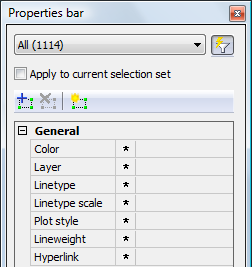
The Properties bar mode is set to
Quick Select.
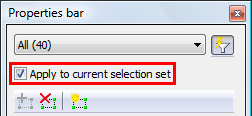
(option) Click the Apply to
current selection option if you want to filter an existing
selection set.
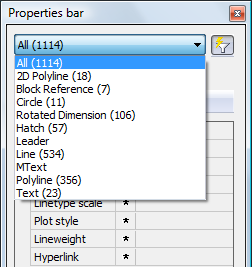
Click the Selection
List button, to see a list of all entity types in the
current drawing or current selection set (see previous step).
A list of all entities in the drawing and the number of entities of
each type displays.
Select an entity type in the list, e.g.
Line.
Line properties show in the Properties Bar.
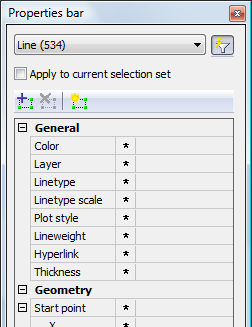
Specify the property filters, e.g. Color, Layer and
Linetype.
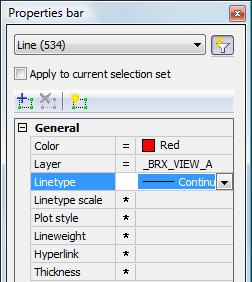
Do one of the following:
Click the Add to new
selection set button ( ).
).
The entities that match the selected criteria are selected.
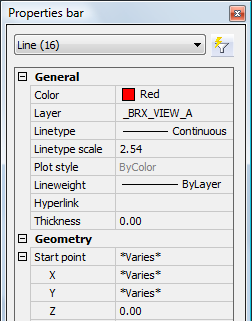
Click the Add to the
current selection set button ( ).
).
The entities that match the selected criteria are added to the
current selection.
Click the Remove from
current selection set button ( ).
).
The entities that match the selected criteria are removed from the
current selection.
(option) Repeat the above procedure to further refine the selection set.
| Bricscad™ is commercialized by Bricsys NV. Bricsys NV and Vondle NV are fully owned subsidiaries of Menhirs NV. Copyright © 2001- Menhirs NV - All rights reserved. |