Copying Entities in a
Drawing
Commands: COPY, COPYCLIP,
COPYBASE,
PASTECLIP and
PASTEBLOCK
You can duplicate entities within the current drawing using the
Copy command. The default method is
to create a selection set and then specify a starting point (base
point) and an endpoint (second point) for the copy. You can also
specify the displacement as a direction vector (X,Y,Z).
Depending on the COPYMODE system
variable you can create multiple copies of the selection set
or just one.
Copybase and Pasteblock pastes the selection as a block.
The Copy option of
the Grips Editing
commands allows to create multiple copies of the entities being
stretched, moved, rotated, mirrored or scaled.
To copy a selection set
- Do one of the following:
- Click the Copy
tool button (
 ) on the Modify toolbar.
- Choose Copy in
the Modify menu.
- Type copy or
CO in the command bar.
You are prompted: Select entities to copy:
-
Select the entities, then right click or press Enter.
If Copy Mode is Multiple:
You are prompted: Enter base point: mOde/<Displacement>:
If Copy Mode is Single:
You are prompted: Enter base point:
mOde/Multiple/<Displacement>:
- Specify the base point.
The selection set is now attached to the cross hairs.
You are prompted: Enter second point: <Enter to use the base
point as displacement>:
- Do one of the following:
- Click the second point.
- Use Direct
Distance Entry: type the displacement distance, then press
Enter.
The distance is measured in the cursor direction.
Use ORTHO or
POLAR
TRACKING to constrain the movement of the cross hairs.
- Press <Enter>: the first point is
interpreted as a relative X,Y,Z displacement.
E.g. if the coordinates of the base point are 2,3,0, the selection
set is copied 2 units in the X direction and 3 units in the Y
direction from their current position.
The selection set is copied.
If Copy Mode is
Single, the copy command is
completed.
If Copy Mode is
Multiple, you are prompted to create
the next copy. See
To make multiple copies.
To make multiple copies
- Do one of the following:
- Click the Copy
tool button () on the Modify toolbar.
- Choose Copy in
the Modify menu.
- Type copy or
CO in the command bar.
You are prompted: Select entities to copy:
-
Select the entities, then right click or press Enter.
If Copy Mode is Multiple:
You are prompted: Enter base point: mOde/<Displacement>:
If Copy Mode is Single:
You are prompted: Enter base point:
mOde/Multiple/<Displacement>:
- (Option) If Copy
Mode is Single, do one of the
following:
- Choose Multiple in the prompt menu
- Type M, then
press Enter
You are prompted: Enter base point:
mOde/<Displacement>:
- Specify the base point.
The selection set is now attached to the cross hairs.
You are prompted: Enter second point: <Enter to use the base
point as displacement>:
- Do one of the following to specify the second
point.
- Click the second point.
- Type the displacement distance, then press
Enter.
The distance is measured in the cursor direction.
Use ORTHO or
POLAR
TRACKING to constrain the movement of the cross hairs.
The first copy of the selection set is created.
You are prompted: Enter second point:
Undo/Repeat/Exit:
- (option) Repeat step 5 to create additional
copies.
Right click or press Enter to conclude the command.
- (option) Choose the Repeat option.
You are prompted: Select end point (<ENTER> to key in number
of repeats)
The number of repeats increases when you move the cursor away from
the source selection set.
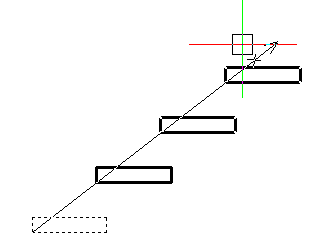
Do one of the following:
- Click when the desired number of copies
displays.
- Press Enter or right click, then type the
desired number of copies.
To paste a selection
set as a block
- Do one of the following:
- Choose Copy with Base
Point in the Edit menu.
- Type copybase
in the command bar, then press Enter.
- Press and hold the Ctrl and Shift
keys, then press C.
You are prompted: Select base point:
- Specify the base point (origin point).
You are prompted: Select entities to copy to the clipboard:
- Select the entities.
- Press Enter to conclude the selection of
entities.
- Do one of the following:
- Choose Paste as
Block in the Edit menu.
- Type pasteblock in the command bar, then press
Enter.
- Press and hold the Ctrl and Shift
keys, then press V.
The selection set is attached to the cursor.
The command window reads: Select insertion
point.
- Specify the insertion point.
The selection is pasted as a block.
- (option) Repeat steps 5 and 6 to paste another
copy as a block.
|
NOTE
|
If you paste multiple copies of the same selection
set, each block is named differently.
|
|
© Menhirs NV. All rights reserved. |