 Draw isometric: Learn
how to draw an isometric perspective using Polar Tracking and Entity Snap Tracking.
Draw isometric: Learn
how to draw an isometric perspective using Polar Tracking and Entity Snap Tracking.Grid and snap help you to draw fast and accurately. A grid is a set of evenly spaced, visible dots that serve as a visual distance reference. The grid also indicates how far the drawing limits extend. The snap feature creates a set of evenly spaced, invisible magnetic points, which make the crosshairs move in even increments. Both grid and snap are like the intersection points of the lines on a piece of grid paper. Grid points are for visual reference only and they do not print. Snap constrains the points that you can pick with the mouse.
Both snap and grid can be toggled on/off separately, giving you the opportunity to display the grid points, while snap is not active and vice versa.
Both snap and grid can be set differently in each viewport.
In each viewport you can rotate the grid using the Snap Angle setting.
Draw isometric: Learn
how to draw an isometric perspective using Polar Tracking and Entity Snap Tracking.
You can use the Isometric snap and grid option to create two-dimensional isometric drawings. With the isometric option, you can draw a simulated three-dimensional view on a two-dimensional plane, much the same as you might draw on a piece of paper. Do not confuse isometric drawings with three-dimensional drawings.
The isometric option always uses one of three preset planes, which are denoted as Left, Right and Top. You cannot alter the arrangement of these planes. If the Snap Angle is 0, the three isometric axes are 30 degrees, 90 degrees, and 150 degrees.
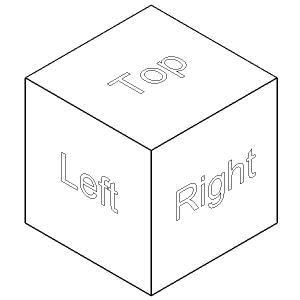
When you set the Snap Style setting to Isometric Snap and then set the Snap Isometric Pair setting to Left, Top or Right, the snap intervals, grid, and crosshairs align with the selected plane. The grid is always shown as isometric and uses y-coordinates to calculate the grid spacing. If the Orthogonal Mode is active, the movement of the crosshairs is constrained to the current isometric plane. Press the F5 function key to toggle the Snap Isometric Pair setting.
Display the Snap and Grid settings
Do one of the following to display the Snap/Grid settings in the Settings dialog:
In the
Status Bar, right click on the Snap field, then choose Settings in the context menu.
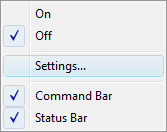
Open the Settings dialog, then click the Drawings button.
Under Drafting, expand Coordinate Input and Snap/Grid.
Defining snap and grid spacing
Display the Snap/Grid
settings in the Settings dialog:
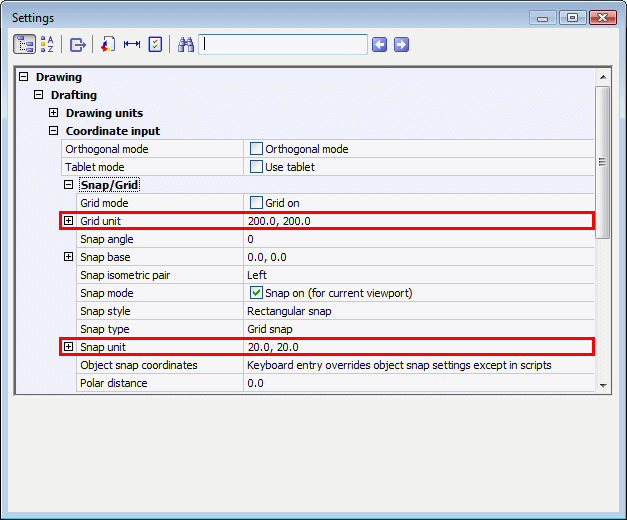
Set the Reference Grid in the current viewport:
Expand the Grid Unit variable.
Type a value in the X and Y fields

Set the Snap Spacing:
Expand the Snap Unit variable.
Type a value in the X and Y fields

Close the System Variables dialog window.
If the Grid display is not turned on yet, do one of the following:
Double click the GRID field ( ) in the Status
Bar.
) in the Status
Bar.
Click the Grid
tool ( ) on the Settings
toolbar.
) on the Settings
toolbar.
If Snap is not turned on yet, do one of the following:
Double click the SNAP field ( ) in the Status
Bar.
) in the Status
Bar.
Click the Snap
tool ( ) on the Settings
toolbar.
) on the Settings
toolbar.
|
NOTES |
|
See the LIMITS command.
The appearance of the Drawing Limits tool button reflects the current status of the Drawing Limits:
 = Limits are ON
 = Limits are OFF
Click the Drawing Limits tool button to toggle the Drawing Limits on/off.
Display the Snap/Grid
settings in the Settings
dialog:
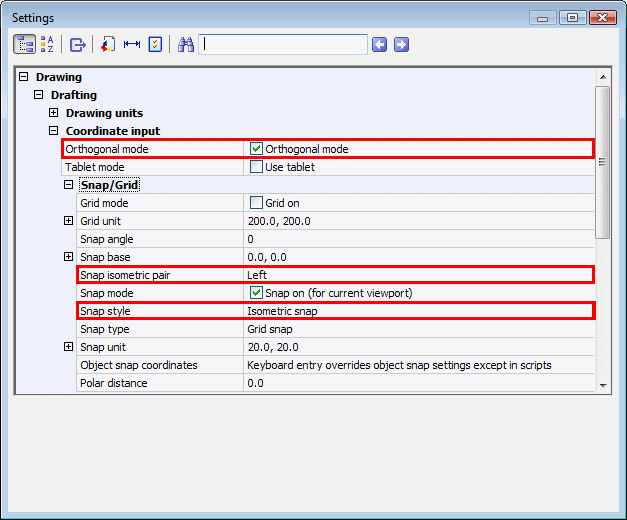
Turn on the Orthogonal Mode.
Use the SNAP command to set the Snap Style setting to Isometric Snap.
Press the F5 function
key to set the appropriate drawing plane: Top, Left or
Right.
Display the Snap/Grid settings in the Settings dialog:
Select the Snap Angle setting.
Type a new value in the Snap Angle setting field.
Close the Settings dialog.
|
NOTE |
You can also set the Snap Angle by typing snapang in the command bar. When in a command, type 'snapang (with an apostrophe in front), to set the Snap Angle variable transparently (= without interrupting the running command). |
| Bricscad™ is commercialized by Bricsys NV. Bricsys NV and Vondle NV are fully owned subsidiaries of Menhirs NV. Copyright © 2001- Menhirs NV - All rights reserved. |