Printing a
layout
Printing a
layout
Commands: PLOT, PRINT, QPRINT, PAGESETUP, PUBLISH
The Plot command plots drawings to printers and to files, through prompts at the command bar; this command is meant for scripts and routines.
The Print command prints drawings to plotters and files through a dialog box.
The Qprint command prints the drawing with the default plot configuration, without displaying the Print dialog box (short for "quick print").
The PageSetup command creates and edits page setups for plotting drawings in the Drawing Explorer.
Creating page setups
and layouts
A standard print procedure consists of the following steps:
Do one of the following to open the Print dialog:
Choose Print in the File menu.
Type print in the command bar, then press Enter.
Press Ctrl + P
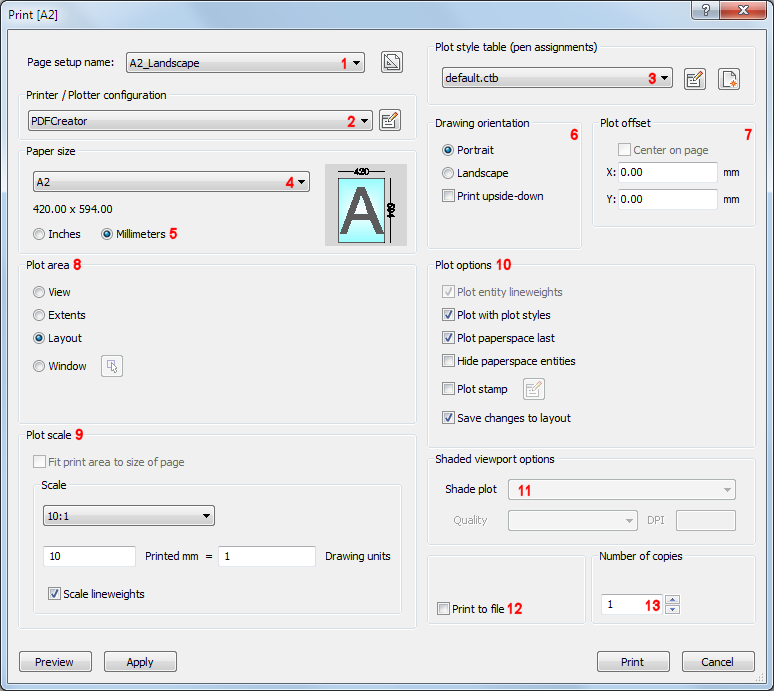
Select a Page Setup name. (1)
The following steps are optional and only necessary if you want to use overrides on the selected page setup definition.
Choose a Printer or Plotter Configuration. (2)
Choose a Plot style table. (3)
Choose a Paper Size. (4)
The image reflects the position and orientation of the drawing on
the selected paper size.
Choose the Paper Units. (5)
Choose the Drawing Orientation.(6)
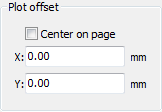
Define the Plot offset. (7)
Specify the Area to plot. (8)
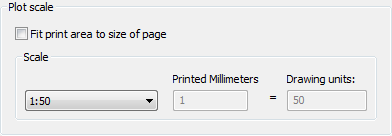
Define the Plot Scale. (9)
Check the Plot Options. (10)
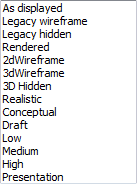
When printing model space, choose a Shade Plot
mode. (11)
This option is disabled when printing a paper space layout.
Check/uncheck the Print to file option (12)
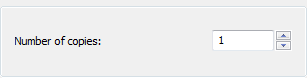
Specify the Number of copies. (13)
Click the Preview button to see a preview of the plot output.
When in a layout, click the Apply button to update the layout.
Click the Print button to start printing.
|
NOTE |
All print settings and options are saved in the Model and each of the Layouts. |
Do one of the following:
|
NOTE |
If you click the Print ( |
Press the down arrow, then select the paper size in the Paper Size list.
The available sizes depend on the selected printer.
Select either Inches
or Millimeters.
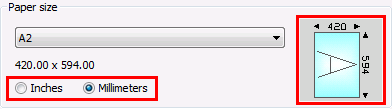
The paper size image indicates the size, position and orientation of the plot area on the selected paper size.
|
NOTE |
The Scale and Plot offset setting units are changed according to the chosen Paper units. |
To choose the paper orientation
Select either Portrait or Landscape.
The paper size image changes accordingly.
When in a layout, click the Apply button to update the display.
Select either Center on page
or
type the plot offset in the X: and Y: fields.
The offset is calculated from the bottom left corner of the paper.
When in a layout, click the Apply button to update the display.
|
Option |
Result |
|
View |
Prints the portion of the drawing that displays in the current viewport or a saved view. |
|
Extents |
Prints all entities in the drawing |
|
Limits |
Prints to the limits defined in the drawing This option is only available when printing in Model space. |
|
Layout |
Prints the current layout. This option is only available when printing in Paper space. |
|
Window |
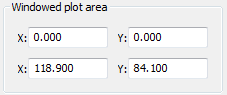
Prints the portion of the drawing contained in a user defined window, maintaining the aspect ratio of the windowed area to the drawing. Click the Select print area button
( or Type the the X- and Y-coordinates of the corners of the print area in the X: and Y: fields.
|
|
NOTE |
The SCALELISTEDIT command allows to edit the list of available scales in the Print dialog and the Standard Scale property of a paper space viewport. |
If you print in paper space, the final scale of the plot output is the product of the viewport scale and the plot scale.
In order to keep control over the scale of the plot output:
|
Paper units
|
Drawing units
|
Plot scale
|
Printed |
Drawing Units |
|
mm |
mm |
1:1 |
1 |
1 |
|
mm |
cm |
10:1 |
10 |
1 |
|
mm |
m |
1000:1 |
1000 |
1 |
|
inches |
inches |
1:1 |
1 |
1 |
|
inches |
feet |
12:1 |
12 |
1 |
If you print in model space, the scale of the plot output equals the plot scale, on condition your drawing units equal the paper units. Otherwise you need to multiply the plot scale with respect to the relationship between paper units and drawing units. E.g. if you want to plot at a 1/50 scale in a drawing of which 1 DU = 1 cm, the plot scale = 1/5, if 1 DU = 1 m the plot scale = 20/1 or 1/0.05
Click to toggle the plot options On / Off.
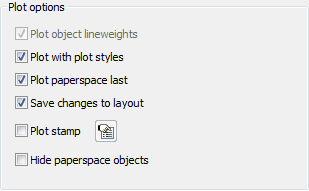
|
Option |
Result |
|
Plot object lineweights |
If Plot with plot styles is off, object lineweights are plotted. |
|
Plot with plot styles |
Settings of the assigned STB or CTB file are used. |
|
Plot paperspace last |
Entities in Model space are plotted first, paperspace entities last. |
|
Save changes to layout |
All changes made in the Print dialog are saved in the layout. This option toggles the Save changes to layout variable |
|
Plot stamp |
Adds a header and / or footer. Click the Edit plot stamp button
( |
|
Hide paperspace objects |
Removes hidden lines from 3D entities in paper space. |
Under Shade viewport options, click the list button, then select an option:
|
NOTE |
This option applies to model space printing only. The Shade Plot mode of a paper space viewport is defined in the Shade Plot property of the viewport. |
 ).
).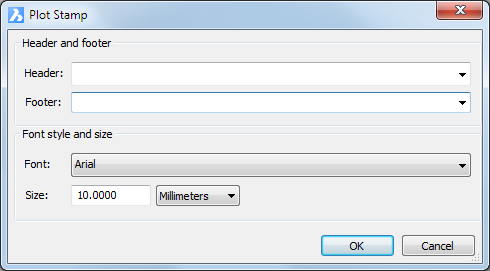
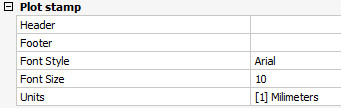
The plot stamp settings are saved to a series of user preferences in the current user profile, which can be edited in the Settings dialog under Program Options / Plot and Publish / Plot Stamp:
|
Name |
Description |
|
$Name |
Adds the name of the current user, as definied in the User Name field of the License Information. |
|
$Company |
Adds company name of the current user, as definied in the Company field of the License Information. |
|
$Date |
Adds the current date. |
|
$DateTime |
Adds the current date and time. |
|
$DwgName |
Adds the file name and path of the drawing. |
|
NOTE |
The header and footer text consists of three parts (left, center and right), separated by commas. By default the header and footer text is centered. The header and footer
text can be outlined left center and/or right by separating the
text with commas. Type a space before one of the commas to leave one of the parts empty, thus outlining the header or footer left or right.
|
To specify the number of copies
Do one of the following:
To see a preview of the plot output
| © Menhirs NV. All rights reserved. |
 ) button in the
  ), then specify the two corners
of the print area in the drawing.
), then specify the two corners
of the print area in the drawing.